
Microsoft Dynamics 365 Integration Guide
Discover how Microsoft Dynamics 365 integration can connect your systems, streamline workflows, and ensure accurate data for informed business decisions.

Want to make your Microsoft 365 work harder for your business?
and we’ll tailor a solution that’s just right for you.
Every business has information scattered across different tools. Microsoft Dynamics 365 is powerful, but it reaches its full potential when it integrates with your existing systems.
Disconnected software makes it hard to find answers quickly. 89% of companies struggle with data and system integration, leaving teams to spend time tracking information instead of using it.
Linking Dynamics 365 to your other applications keeps data accurate and available. Everyone can access the same information, making daily tasks simpler and more reliable.
This guide covers why integration matters and how to connect Dynamics 365 to your existing tools for accurate data and efficient workflows.
Essential Highlights:
- Connect Dynamics 365 with Other Systems: Integrating CRM, ERP, and Finance tools creates one consistent data flow so teams can work faster and avoid manual errors.
- Pick the Right Integration Method: Use tools like Power Automate, Dataverse, or Logic Apps based on your system complexity, data volume, and technical setup.
- Plan Every Step Clearly: Define goals, choose data owners, decide sync direction, and map fields precisely before building anything to prevent future breakdowns.
- Test and Monitor Thoroughly: Use real data, test edge cases, and track logs after launch to catch quiet failures and keep syncs reliable.
- Build for Long-Term Stability: Keep each integration focused, review syncs regularly, and use consistent data standards. the same structured approach Alberon applies in every Dynamics 365 project.
What Is Microsoft Dynamics 365 Integration?
Dynamics 365 integration connects the platform’s CRM, ERP, Finance, and Sales applications with your other business software. Instead of each tool operating independently, they communicate and share information directly.
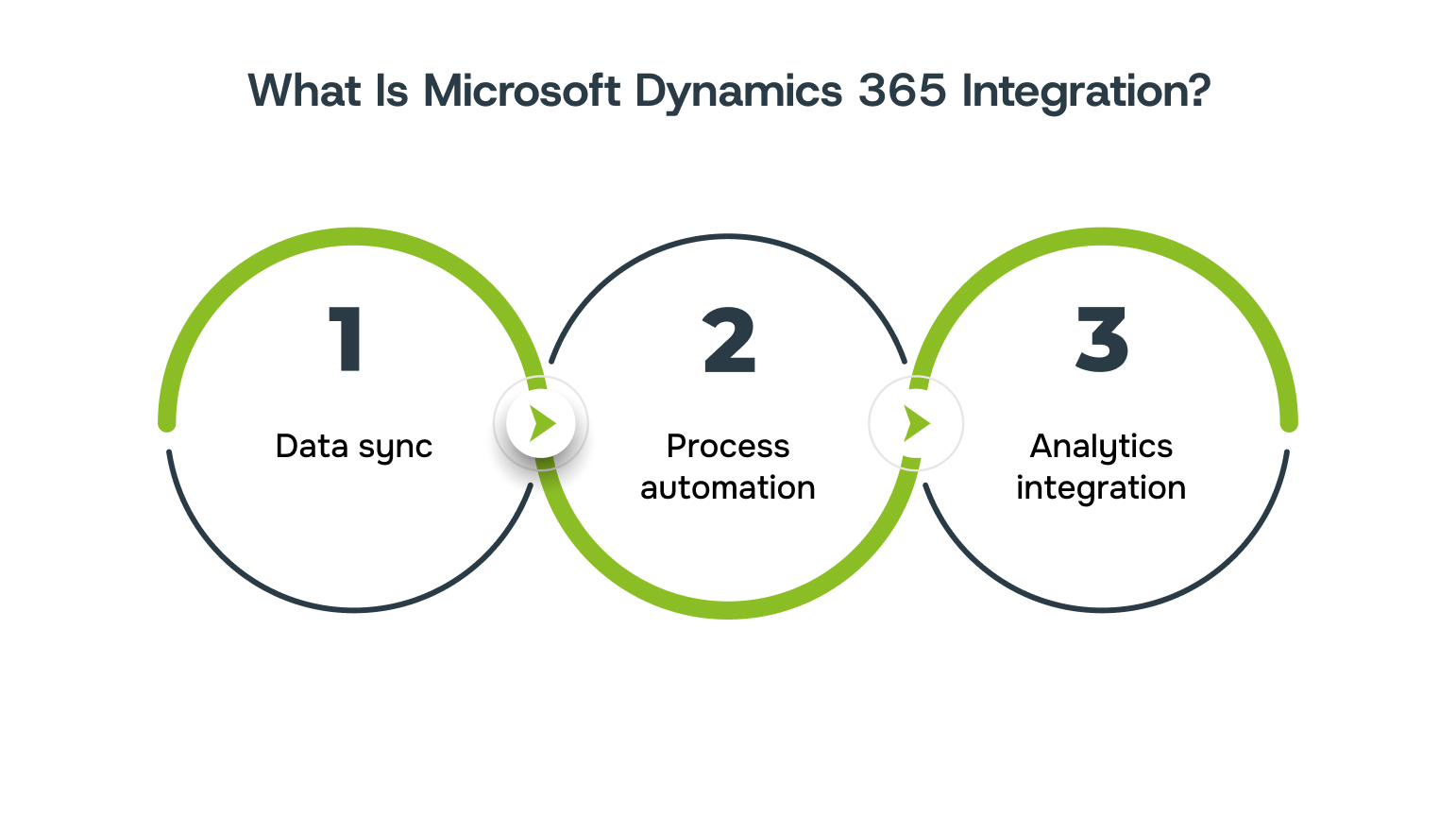
Integration happens on three levels:
- Data sync ensures records are shared between systems, like when a new contact in your CRM automatically appears in your email platform.
- Process automation triggers actions across applications, such as a closed deal in Sales instantly generating an invoice in Finance, with no manual steps.
- Analytics integration combines data from multiple sources to produce unified, comprehensive reports.
The result is software that works together rather than in parallel.
Also Read: Business Process Optimisation: Step-by-Step Guide
Now that you understand what integration involves, it’s essential to recognise its importance for your business operations and success.
Why Microsoft Dynamics 365 Integration Matters
Your sales team closes a deal. Next, Finance prepares the invoice. Then Operations steps in to fulfil the order. Without integration, each team waits for someone to manually pass the update.
Connected systems remove this back-and-forth. Sales marks an opportunity as won, Finance sees the billable amount instantly, and Operations receives fulfilment details automatically. No one has to send updates; the system already knows.
Let’s break down why this connection matters:
- Cost savings: Manual data entry wastes time and resources. Staff hours go into copying information instead of analysis or planning.
- Higher accuracy: Automated data transfer prevents human error. For example, a misplaced decimal in manual entry could turn a £10,000 order into £100,000.
- Smoother teamwork: Marketing avoids sending campaigns to customers who cancelled service the day before. Support teams view full purchase histories instantly, so customers don’t have to repeat details.

When you realise how much smoother work runs with connected data, it naturally leads to looking at the options available for linking Dynamics 365.
Core Microsoft Dynamics 365 Integration Options
Microsoft Dynamics 365 can connect to other tools in different ways. Each option has its purpose and fits different business needs. Some work best for simple tasks, others handle complex workflows, and some support full custom software integration, giving developers complete control over how systems interact.
Here’s a clear look at the main integration methods and what they do:
| Integration Method | What It Does | Key Points |
| Power Automate | Builds workflows between applications using a visual interface. | Handles simple transfers and multi-step sequences without coding. |
| Dataverse | Provides a common data structure for Microsoft apps. | Ensures a single version of records; changes appear everywhere instantly. |
| Power BI | Pulls data for visualisation from Dynamics 365 and external sources. | Lets you compare internal figures against external market data. |
| Logic Apps | Manages complex workflows involving non-Microsoft systems. | Supports more triggers and actions, including custom code execution. |
| APIs | Enables direct system-to-system communication for developers. | Requires programming but gives complete control over data exchange. |
| Middleware (MuleSoft, Dell Boomi) | Acts as a translator between multiple systems. | Reduces integration points; all systems connect to middleware once. |
| Third-party Connectors | Pre-built integrations for specific software combinations. | Faster setup but limited customisation to vendor design. |
With a clear understanding of the main integration options, it’s important to see how these tools can be applied in a practical, structured approach.
Step-by-Step Process for Microsoft Dynamics 365 Integration
Connecting Microsoft Dynamics 365 with your other business systems isn’t just about pushing data back and forth. If you want clean results, fewer sync issues, and long-term reliability, you’ll need a structure that’s grounded in reality, not theory. Here’s how to get it done right.
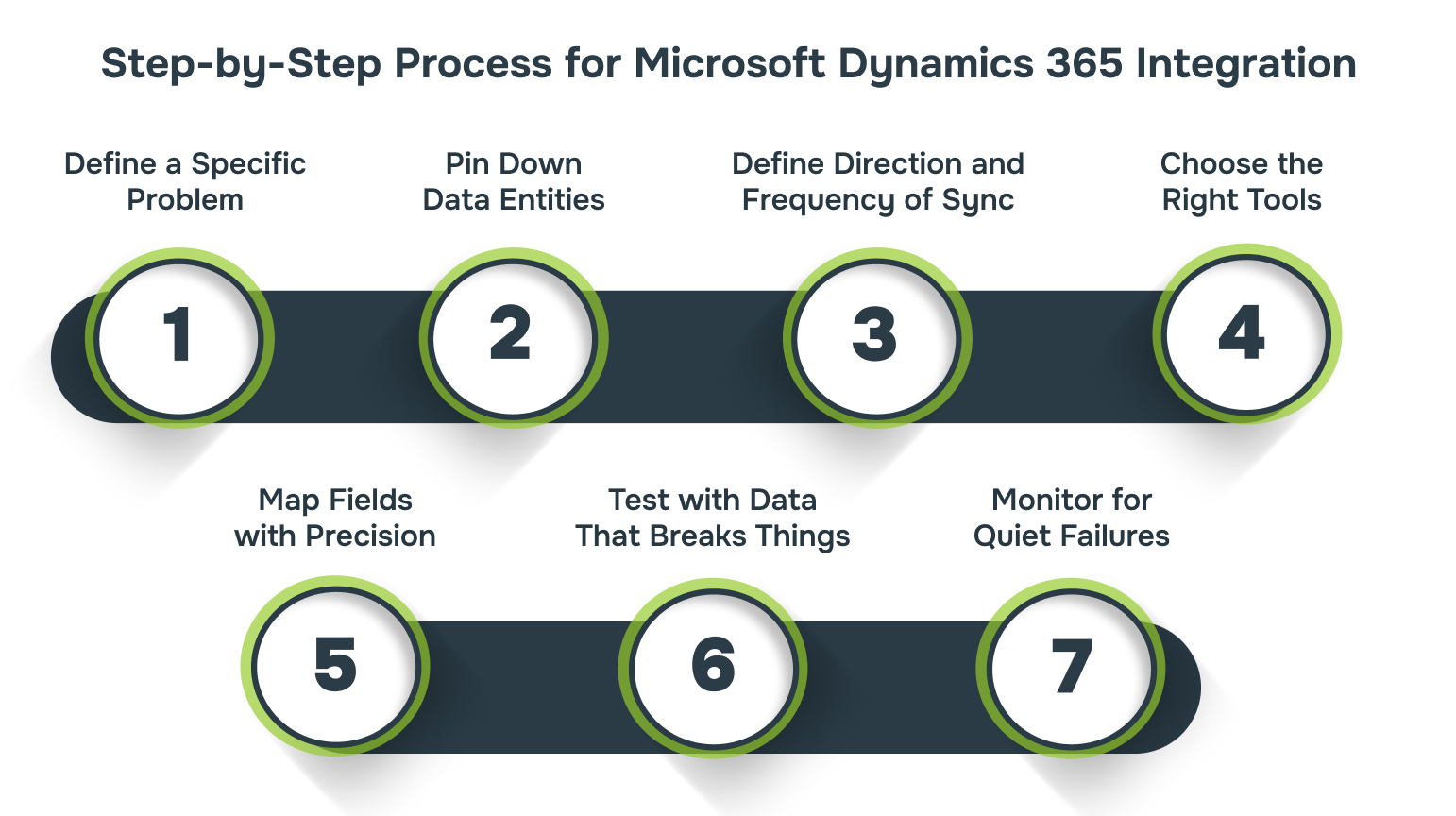
1. Define a Specific Problem Worth Solving
Start by identifying a clear, operational pain point, something measurable that the integration should fix.
Example: Sales can’t see real-time inventory when quoting deals in Dynamics 365 Sales. Inventory data lives in your ERP (such as Dynamics 365 Finance). Integrating those systems will give Sales visibility into stock levels before committing to a deal.
Action:
- Document the exact workflow gap.
- Identify the source system that owns the missing data (e.g., ERP for inventory, CRM for customers).
- Verify that the source supports data access (API or connector availability).
2. Pin Down Data Entities and System of Record
Before you sync anything, decide which system “owns” the truth for each data entity.
Action Steps:
- In Dynamics 365, open the Dataverse Table Browser or use Advanced Find to list entities such as Accounts, Contacts, or Orders.
- In your ERP or other app, export equivalent entities using its data management workspace or API.
- Record the following in a spreadsheet:
- Field names and data types
- Which system is authoritative for each entity
- Which fields are critical for business operations
If Customer Address exists in both systems, decide now which one wins: CRM or ERP. That decision drives every sync rule.
3. Define Direction and Frequency of Sync
Not all integrations need to be real-time. Decide what direction data should flow and how often it should update.
Options:
- One-way sync: Data flows from source to target (e.g., ERP → CRM for product catalog).
- Two-way sync: Data flows in both directions (e.g., Customer records).
- Real-time vs. scheduled: Real-time updates via triggers or hourly/daily batch syncs.
Action Example:
- In Power Automate, pick your trigger type:
- Real-time: “When a row is added, modified, or deleted” (Dataverse trigger)
- Scheduled: “Recurrence” (hourly/daily)
- In Dual-write, direction is bidirectional by default but can be adjusted in each table map.
4. Choose the Right Tools
There’s no single best integration tool for Dynamics 365. Here’s a breakdown of what typically works best:
- Dual-write: For syncing Dynamics 365 Sales with Finance and Operations (real-time, bidirectional).
- Power Automate: For low-code, event-based flows within Microsoft 365 apps.
- KingswaySoft / Scribe: For complex external integrations (e.g. with on-prem systems or non-Microsoft platforms).
- Azure Logic Apps: For scalable, cloud-first workflows with built-in connectors.
- Dataverse Web API / Azure Functions: When you need full control through custom development.
Select based on what you already use and what your team is equipped to support.
Action: If you’re new to integrations, start with Power Automate:
- Go to make.powerautomate.com.
- Select Create → Automated cloud flow.
- Choose Microsoft Dataverse → When a row is added, modified, or deleted as the trigger.
- Add a new step using your target system’s connector (e.g., SQL Server, SharePoint, or Dynamics Finance).
5. Map Fields with Precision
Incorrect mappings are the #1 cause of silent failures.
Action Steps:
- In Power Automate, use the Dynamic Content panel to map fields from Dataverse to the target connector.
- Validate field types (text vs. number, date formats, currencies).
- For lookups, confirm IDs or names align between systems.
- In Dual-write, open the Table Map Editor, check each column mapping, and fix mismatches before running sync.
Tip: Test mappings on one entity first (e.g., Customer) before rolling out to all.
6. Test with Data That Breaks Things
You’re not testing for success. You’re testing for what causes failure. That means using real data and edge cases, not just dummy records with perfect values.
Action Plan:
- Run a controlled test using realistic data that includes:
- Special characters (apostrophes, slashes, symbols)
- Extra-long strings
- Missing required fields
- Duplicates or conflicting IDs
- In Power Automate, use Test → Manual trigger to simulate events.
- In Dual-write, perform an Initial Sync and review the Health Check dashboard for failures.
Track what fails, not just what succeeds. Adjust mappings and logic until even the worst records sync cleanly.
7. Monitor for Quiet Failures After Launch
Once the integration goes live, errors won’t always be immediately apparent. They’ll sit in logs until someone spots a missing record or a silent data mismatch. That’s why close monitoring is critical early on.
Action Steps:
- Power Automate: Enable email notifications on flow failure. Check Flow Analytics → Runs → Failed.
- Dual-write: Monitor via the Dual-write Error Log in Finance & Operations.
- Azure or custom solutions: Send logs to Application Insights.
- Watch for:
- Authentication errors
- Schema changes after updates
- Missing or partially updated records
Early detection prevents small issues from becoming corrupted data.
Also Read: The Meaning of SaaS and How It Benefits Your Business
Once you’ve laid out the steps and seen how the pieces fit together, it’s helpful to take a moment to consider how to keep everything running smoothly over time.
Best Practices for Smooth Integration
Building integrations works best when each connection has a clear purpose. A single integration handles customer data, another handles orders, and a separate one manages inventory. This way, if something breaks, you can pinpoint the problem quickly instead of untangling a web of dependencies.
Here are some best practices for smooth integration:
- Keep integrations focused on single functions: separate connections for customer data, orders, and inventory make troubleshooting faster.
- Use Dataverse for Dynamics 365-to-Dynamics 365 links: its native architecture reduces failure points and stays compatible with Microsoft updates.
- Set data standards before connecting systems: define formatting rules for phone numbers, dates, and customer names so downstream systems receive consistent data.
- Schedule quarterly sync reviews: processes and categories change over time, so regular checks prevent errors from growing unnoticed.

Also Read: Optimise Your Microsoft 365 for Better Productivity
Following these practices helps ensure your integrations stay reliable, efficient, and easier to manage, which is exactly how Alberon approaches every implementation.
Making Dynamics 365 Integration Work in Practice with Alberon
When different departments use separate systems, getting data to flow correctly between CRM, ERP, and finance tools can be a challenge. Without clear connections, teams spend time fixing errors instead of working efficiently.
Alberon works closely with UK businesses to make sure the integration actually supports daily operations and long-term growth. Here’s what that looks like:
- A dedicated project manager meets with your teams to map out how data moves and which processes need to link across systems.
- The technical team sets up secure connections so information between Dynamics 365 apps and existing platforms stays accurate and consistent.
- Systems are built to be flexible, allowing you to add new apps or automate reports without disrupting your current setup.
- After launch, Alberon provides ongoing monitoring and support, checking flows, fixing issues, and adjusting setups as business needs evolve.
This approach ensures your Dynamics 365 integration is practical, keeps teams productive, and makes data reliable every day.
Conclusion
Careful planning keeps your Dynamics 365 setup running smoothly as your business grows. Linking systems clearly means teams spend less time fixing issues and more time getting work done.
A structured integration makes future changes easier and predictable. Staying ahead ensures your software remains reliable as your needs evolve. At this stage, Alberon can step in to help your business implement and maintain these integrations, making sure the system adds real value every day.
Contact Alberon today to implement and maintain your Dynamics 365 integration.
FAQs
Q: Can Dynamics 365 integrations improve compliance and audit tracking?
A: Yes. Integrations can automatically log data changes and user actions across connected systems. This creates an audit trail that facilitates regulatory compliance and internal reviews without requiring additional manual tracking.
Q: How does integration affect mobile access to data?
A: When systems are integrated, mobile users can access up-to-date records from anywhere. Field teams can see accurate customer, inventory, or sales data without waiting for office updates.
Q: Can integrations support AI or predictive analytics?
A: Integrated data provides a unified dataset, which AI tools can analyse to forecast trends, predict customer behaviour, or optimise inventory. Separate silos make this type of analysis difficult or incomplete.
Q: Can a consulting partner help with compliance and audit tracking in Dynamics 365?
A: Yes. Companies like Alberon can help design integrations that automatically log changes across systems. This creates a clear audit trail, making regulatory compliance and internal reviews easier without adding manual work.
Q: What impact do integrations have on user training?
A: With connected systems, teams only need to learn one workflow for tasks that touch multiple systems. This reduces training time and prevents confusion caused by switching between disconnected platforms.
Q: Are integrations scalable as the business grows?
A: Yes. A properly designed integration can handle additional users, new apps, or higher transaction volumes. This avoids starting from scratch when the business expands or adds new tools.
Ready to Improve your Business Productivity
Get a trusted partner to navigate your digital transformation. With Alberon, you can ensure a smooth transition, clear communication, and peace of mind.