
Business Central Integration: Simplify UK Workflow with D365
Learn how Business Central Integration with Dynamics 365 simplifies workflows, syncs orders, and improves efficiency for UK businesses. Discover how today.

Want to make your Microsoft 365 work harder for your business?
and we’ll tailor a solution that’s just right for you.
Running a business often means juggling multiple systems that don’t fully communicate with each other. Sales orders, inventory updates, and customer information can live on separate platforms, forcing teams to spend hours reconciling data rather than focusing on growth. Even minor errors can escalate into costly delays or dissatisfied clients.
Business Central Integration with Dynamics 365 addresses these challenges by connecting finance, sales, and operations into a single, unified system. With accurate, up-to-date data flowing seamlessly across departments, businesses gain clarity, reduce manual work, and make smarter decisions faster.
In this guide, we will explore everything you need to implement Business Central Integration with Dynamics 365, from setting up connections and mapping entities to automating workflows, giving you a practical roadmap to improve efficiency, minimise errors, and free your team to focus on what matters most.
Essential Highlights
- Integrate Systems to Drive Efficiency: Connecting Business Central with Dynamics 365 ensures accurate, real-time data across sales, finance, and operations, reducing errors and wasted time.
- Automate Repetitive Workflows: Automating sales orders, inventory updates, and invoicing frees your team to focus on higher-value business activities.
- Centralise Visibility for Smarter Decisions: A unified view of key metrics enables faster, data-driven decision-making and improved operational insight.
- Tailor Entity Mappings to Your Needs: Customising entity and data mappings ensures your integration reflects your unique business processes and maintains data integrity.
- Maintain Compliance and Control: Properly configured access roles, permissions, and synchronisation rules help protect sensitive data and support regulatory compliance.
Why Integrating Dynamics 365 with Business Central Makes a Difference
Disjointed systems are one of the biggest hidden costs for UK businesses. Integrating Business Central with Dynamics 365 transforms this fragmented landscape into a cohesive, automated environment, allowing teams to work smarter, reduce errors, and make faster, data-driven decisions. Here’s why taking this step is important for your business:
1. Access Real-Time, Reliable Data Across Your Teams
When your sales, finance, and operations data exist in separate systems, mistakes and delays are almost inevitable. Integration allows you to see accurate, up-to-date information across your entire business, so you can make decisions with confidence.
2. Automate Repetitive Tasks and Free Up Valuable Time
Chasing spreadsheets and reconciling orders manually wastes hours each week. By integrating your systems, you can automate workflows such as sales orders, invoicing, and inventory updates, giving your team more time to focus on activities that drive growth.
3. Make Smarter Decisions with Clear Visibility
A disconnected setup makes it hard to know what’s really happening in your business. Integration provides a centralised view of key metrics, allowing you to track performance, monitor cash flow, and respond quickly to opportunities or challenges.
4. Deliver a Consistent and Reliable Customer Experience
Inconsistent data often results in mistakes in orders or communication. With integration, your team has all the information they need to serve customers accurately and efficiently, helping you build trust and loyalty.
5. Prepare Your Business for Growth and Change
As your business expands, outdated systems and manual processes can become a bottleneck. Integrating Business Central with Dynamics 365 creates a flexible foundation that can scale with your business and adapt to new opportunities without disrupting operations.
Managing integrations can be complex, especially when balancing system updates, user permissions, and workflow customisation. Alberon partners with UK businesses to simplify this process, creating tailored integrations between Business Central and Dynamics 365 that run smoothly from day one. With secure implementation, ongoing support, and expert guidance, Alberon helps your team focus on driving growth rather than managing technical challenges.

How Business Central Connects with Dynamics 365 Using Dataverse
For UK businesses aiming to unify operations, integrating Business Central with Dynamics 365 relies on Dataverse, Microsoft’s secure, cloud-based data platform. Dataverse creates a centralised hub for all business data, enabling consistent, real-time access across sales, finance, operations, and service teams.
How Dataverse Supports Seamless Dynamics 365 Integration
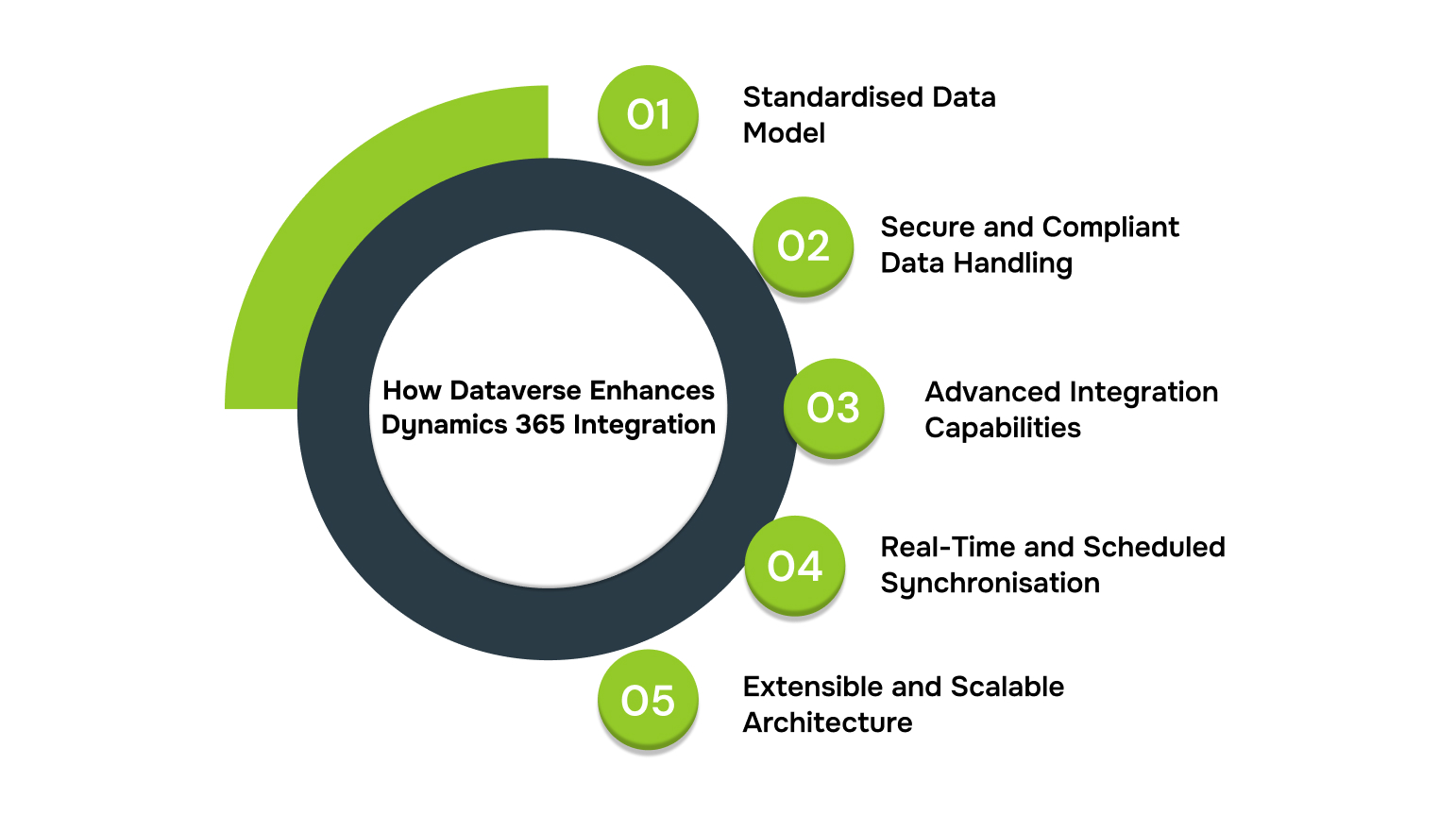
Dataverse is more than a storage layer; it is a common data platform that standardises entities, relationships, and business logic across applications. Key features include:
- Standardised Data Model: Dataverse uses a unified schema to represent key business entities like accounts, contacts, products, and orders. This ensures consistency across systems and eliminates conflicts caused by different naming conventions or structures.
- Secure and Compliant Data Handling: Built with enterprise-grade security, Dataverse supports role-based access, GDPR compliance, and encryption at rest and in transit, giving UK businesses full control over sensitive customer and financial data.
- Advanced Integration Capabilities
- Entity Mapping: Automatically aligns Business Central entities with Dynamics 365 entities, such as Accounts ↔ Customers and Items ↔ Products.
- Business Logic Synchronisation: Workflow rules, validations, and calculations are applied consistently across both platforms.
- Custom Workflows: Automated processes can be tailored to operational requirements, from invoice approvals to inventory updates.
- Real-Time and Scheduled Synchronisation: Dataverse supports real-time sync for immediate updates and scheduled batch sync for complex or high-volume data sets. This flexibility allows businesses to balance performance with operational needs.
- Extensible and Scalable Architecture: Dataverse integrates not only with Business Central and Dynamics 365 but also with Power Apps, Power Automate, and other Microsoft solutions, enabling analytics, AI-driven insights, and cross-application automation on a single platform.
Essential Checks Before Reconnecting Dataverse
When reconnecting Dataverse or adjusting integration settings, careful planning is crucial:
- Data Mapping Review: Ensure all entities and fields are correctly mapped to avoid duplication or conflicts.
- Workflow Validation: Check automated processes to prevent disruptions in approvals, inventory updates, or customer notifications.
- Access Controls: Verify that user roles and permissions remain aligned with compliance requirements.
- Backup Critical Data: Before reconnection, take a full backup of Business Central and Dynamics 365 data to protect against accidental data loss during the process.
- Test Environment Verification: Perform reconnection first in a sandbox or test environment to identify potential issues without impacting live operations.
- Integration Logs and Monitoring: Review existing sync logs and ensure monitoring tools are in place to detect errors or failures immediately after reconnection.
- Version Compatibility Check: Confirm that Business Central, Dynamics 365, and Dataverse versions are compatible to prevent integration errors or unsupported functionality.
With Dataverse properly configured and all essential checks completed, your systems are ready for a seamless integration setup. The following step-by-step guide outlines how to connect Business Central with Dynamics 365 Sales, ensuring accurate data flow and automated processes across your organisation.
Step-by-Step Setup for Integrating Business Central with Dynamics 365 Sales
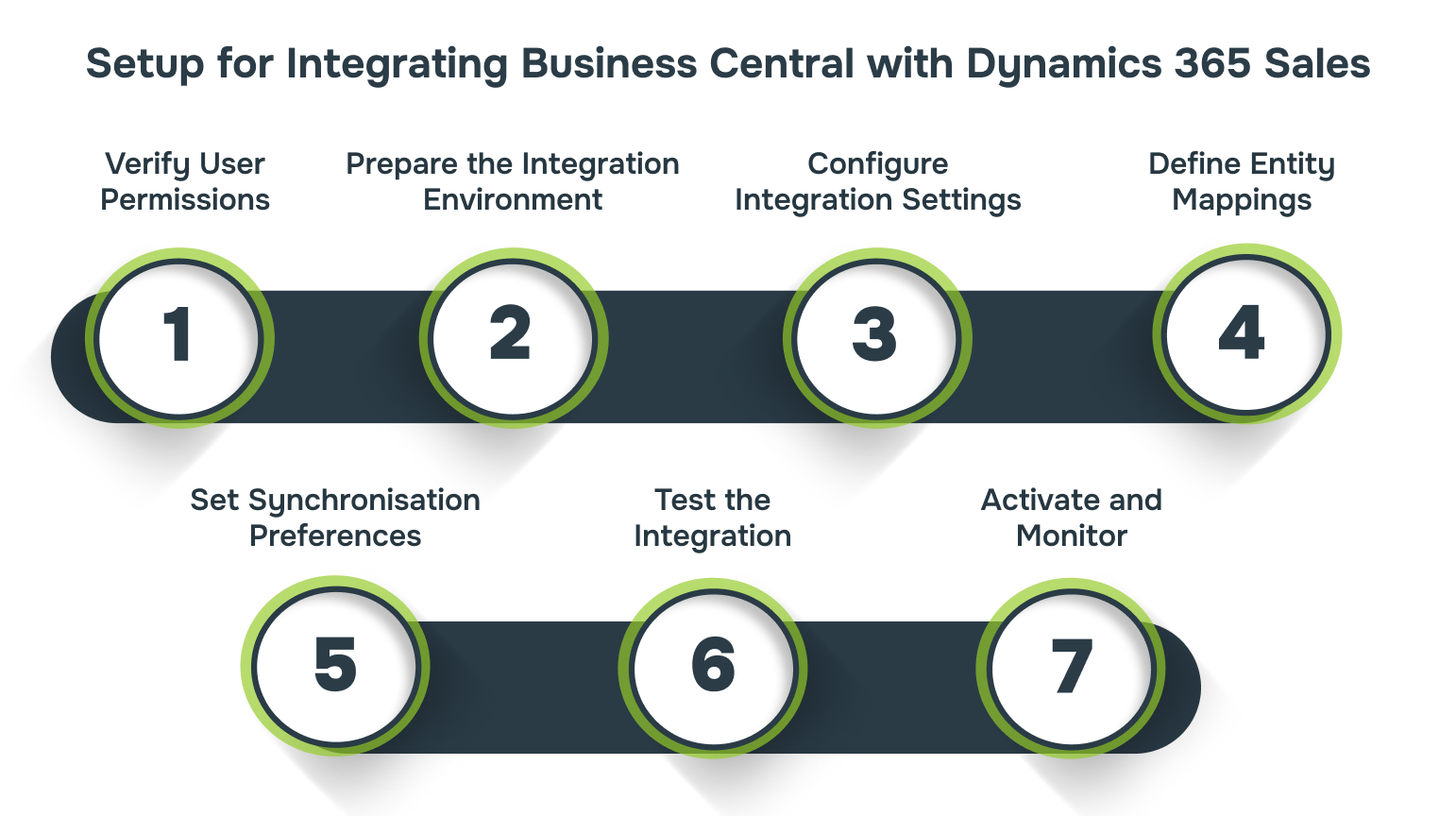
For UK businesses, this integration streamlines the entire quote-to-cash process, reduces errors, and improves visibility across departments. Follow these steps to configure the integration effectively and maximise productivity.
1. Verify User Permissions and Security Roles
- Ensure that the user performing the integration has the necessary permissions in both systems.
- Assign appropriate roles, such as System Administrator or Integration User, to manage sync operations and avoid access issues.
2. Prepare the Integration Environment
- Confirm that Business Central and Dynamics 365 Sales are updated to compatible versions.
- Validate the Dataverse connection, ensuring entities are mapped and workflows are tested.
3. Configure Integration Settings
- Open Business Central → Setup → Dynamics 365 Sales Integration.
- Enter the Dynamics 365 Sales URL and authenticate the connection using your Microsoft credentials.
- Choose the synchronisation preferences, such as real-time or scheduled updates, based on your business needs.
4. Define Entity Mappings
- Map standard entities like Accounts ↔ Customers and Contacts ↔ Leads.
- Review custom entities if your business uses unique objects or workflows.
- Ensure fields like email, phone, and address are correctly aligned to maintain data consistency.
5. Set Synchronisation Preferences
- Decide whether to enable one-way or bi-directional sync depending on data ownership and operational requirements.
- Define sync frequency, batch sizes, and conflict resolution rules for automated updates.
6. Test the Integration
- Run initial synchronisation in a sandbox environment to identify errors.
- Verify that data appears correctly in both Business Central and Dynamics 365 Sales.
- Ensure workflows, automated processes, and notifications function as expected.
7. Activate and Monitor
- Once testing is successful, enable the integration in the live environment.
- Continuously monitor integration logs for errors or failed jobs, and establish a process for troubleshooting issues quickly.
With your integration setup complete, the next step is to ensure that data moves accurately and consistently between Business Central and Dynamics 365 Sales. Configuring synchronisation rules and entity flows helps teams rely on up-to-date information, reduce errors, and automate key business processes.

Data Synchronisation Rules and Entity Flows in Business Central & Dynamics 365
Effective data synchronisation ensures sales, inventory, and customer information are aligned across your systems, giving your teams accurate, actionable insights. Here’s how to configure it efficiently:
1. Choose the Right Synchronisation Direction
- One-way sync: Use when a system is the authoritative source for specific data (e.g., Business Central → Dynamics 365 for invoices).
- Bi-directional sync: Apply when both systems need to update each other, such as sales orders, contacts, or inventory updates.
- Decide which system should be the primary source for each entity to prevent conflicts or duplicate entries.
2. Map Standard Entities
- Typical mappings include:
- Accounts ↔ Customers
- Contacts ↔ Leads or Vendors
- Items ↔ Products
- Verify that essential fields like email, phone numbers, and addresses align across both systems.
3. Customise Entity Mappings
- For businesses with unique workflows or custom entities, tailor mappings to meet operational needs.
- Include optional fields such as custom product attributes, regional pricing, or service-level indicators to maintain consistency.
4. Define Synchronisation Rules
- Frequency: Choose how often data should sync (real-time, hourly, or daily).
- Batch Size: Determine the number of records processed per sync to balance performance and accuracy.
- Conflict Resolution: Decide which system’s data takes precedence if a conflict arises, avoiding errors or duplicates.
5. Set Up Automated Flows
- Use pre-built templates or configure custom workflows to automate essential processes.
- Examples include:
- Sales orders automatically update in Business Central for financial processing.
- Inventory levels are reflected in Dynamics 365 as purchases or shipments occur.
- Customer updates are syncing across both systems in real-time.
6. Test Synchronisation Before Going Live
- Conduct sandbox testing to identify errors, confirm mappings, and ensure workflows function as expected.
- Check that notifications, approvals, and automated processes trigger correctly.
7. Monitor and Maintain
- Regularly review sync logs and dashboards to catch failed jobs early.
- Adjust sync rules if operational needs change, such as adding new product lines, sales regions, or reporting requirements.
How to Connect On-Premises Business Central with Dynamics 365
While cloud integrations are more straightforward, connecting on-premises instances of Business Central and Dynamics 365 requires additional planning due to security boundaries, infrastructure limitations, and update dependencies. However, with the right configuration, you can still achieve efficient data exchange between both platforms.
Key Considerations for On-Premises Integration:
- Infrastructure Assessment: Confirm that both systems meet the minimum requirements for hybrid connectivity and that firewalls, ports, and SSL certificates support secure communication.
- Use of Azure Service Bus or API Gateways: As direct cloud connectors are not always supported on-prem, Azure Service Bus or self-hosted API gateways act as intermediaries for data transfer.
- Authentication Setup: Implement OAuth or certificate-based authentication to ensure trusted communication between environments.
- Scheduled Syncs Instead of Real-Time Flows: Unlike cloud versions, real-time synchronisation may not always be possible.
- Version Compatibility Check: Ensure both systems are aligned in terms of schema and entity availability, as older versions may require additional mapping or middleware adjustments.
Before implementing complex integrations, it’s important to recognise when in-house efforts may fall short. Certain scenarios benefit greatly from guidance by a specialist partner to ensure your Business Central and Dynamics 365 setup works seamlessly.
When to Seek Expert Support from a Partner Like Alberon
Even with clear guidance and step-by-step instructions, integrating Business Central with Dynamics 365 can quickly become complex. Certain scenarios benefit from professional support to ensure efficiency, security, and minimal disruption:
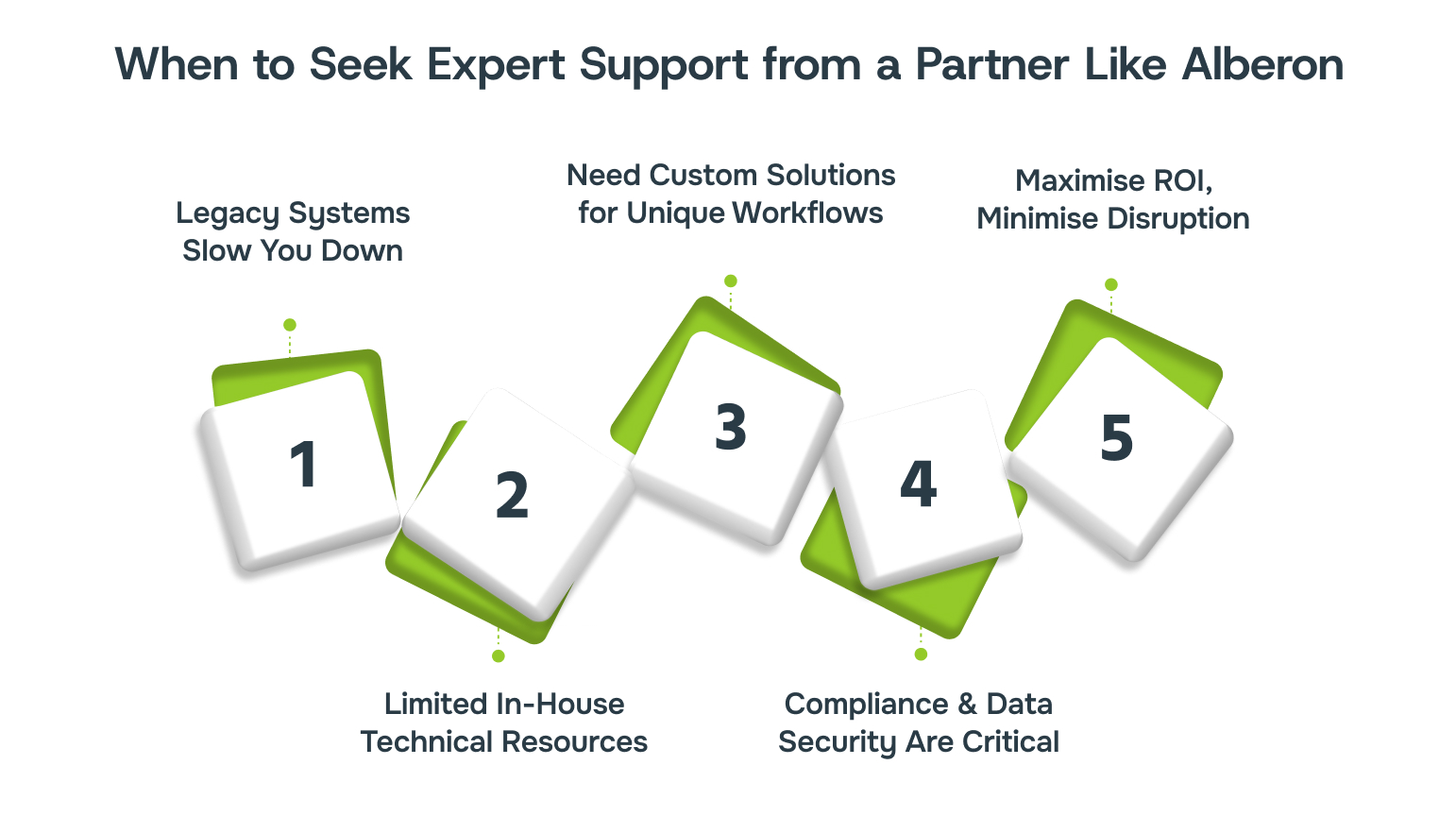
1. Legacy Systems Are Slowing You Down
If your existing tools are fragmented or outdated, connecting them yourself can risk data errors or downtime. Alberon specialise in legacy system modernisation, helping businesses upgrade securely while keeping critical operations running smoothly.
2. Your Team Lacks Internal Technical Resources
Integration requires careful configuration of entities, permissions, and synchronisation rules. Without dedicated expertise, processes can fail or misalign. Alberon provides custom software development and Dynamics 365 support, ensuring your setup is accurate and reliable from day one.
3. You Need Customised Solutions for Unique Workflows
Every business operates differently. Standard templates may not reflect your operational nuances. Alberon tailors CRM and ERP solutions to match your workflows, so data flows seamlessly and automation works exactly as intended.
4. Compliance and Data Security Are Non-Negotiable
Handling sensitive customer or financial data requires strict adherence to GDPR and industry regulations. Alberon’s secure system integration ensures compliance across all platforms while maintaining full operational visibility.
5. You Want to Maximise ROI and Minimise Disruption
A rushed or DIY integration can create hidden costs, slow adoption, and user frustration. Alberon’s process automation and ongoing support allow your team to focus on core business tasks while the integration is implemented efficiently and correctly.
Contact Alberon today to get a tailored plan for your Dynamics 365 integration. Our expertise in custom software development, CRM/ERP optimisation, secure integration, and automation ensures a seamless, compliant connection between Business Central and Dynamics 365, helping your teams focus on growth, not technical headaches.

Conclusion
Integrating Business Central with Dynamics 365 is more than a technical task, it’s a strategic move that can transform how your business operates. By connecting systems, automating workflows, and providing a centralised view of your data, integration helps reduce errors, save time, and empower teams to focus on growth.
For UK businesses managing complex processes, customisation needs, or legacy systems, partnering with an expert like Alberonensures your integration is seamless, secure, and tailored to your unique requirements.
Book a consultation today and take the first step toward smarter workflows, reliable data, and a system that truly supports your business goals.
FAQs
1. How can I integrate my on-premises Business Central with Dynamics 365 Sales?
Integrating on-premises versions of Business Central with Dynamics 365 Sales requires configuring the integration through Dataverse. For versions prior to Business Central 2019 release wave 1, OAuth authentication must be used. It’s essential to ensure compatibility between the SDK versions of both systems and to follow the setup guides provided by Microsoft for a seamless connection.
2. What are the default synchronisation settings when reconnecting Business Central to Dynamics 365 Sales via Dataverse?
When reconnecting through Dataverse, default synchronisation settings are applied, which can overwrite any previous configurations. This includes default table mappings and synchronisation rules. It’s crucial to review and adjust these settings post-connection to align with your business processes.
3. Can I synchronise item availability between Business Central and Dynamics 365 Sales?
Yes, you can synchronise item availability by scheduling the “Item Availability” job queue in Business Central. This job runs every 30 minutes and updates the availability of coupled items, ensuring accurate stock information is reflected in Dynamics 365 Sales.
4. How do I handle sales order integration between Business Central and Dynamics 365 Sales?
Sales order integration can be managed by enabling the “Sales Order Integration” feature in Business Central. This allows sales orders created in Dynamics 365 Sales to be processed in Business Central. Additionally, you can set up automatic creation of sales orders in Business Central when submitted in Dynamics 365 Sales.
5. What are the key considerations when upgrading or turning off the Dynamics 365 Sales integration?
Upgrading or disabling the integration requires careful planning. Reconnecting through Dataverse applies default synchronisation settings and overwrites any existing configurations. It’s recommended to back up your current settings and data before making changes to ensure a smooth transition.
Ready to Improve your Business Productivity
Get a trusted partner to navigate your digital transformation. With Alberon, you can ensure a smooth transition, clear communication, and peace of mind.