
Shopify Integration with Dynamics 365 Business Central
Learn how Dynamics 365 Business Central Shopify integration keeps orders, inventory, and payments in sync for smoother operations. Explore the full guide now.

Want to make your Microsoft 365 work harder for your business?
and we’ll tailor a solution that’s just right for you.
Running a Shopify store seems simple until orders and products start piling up. Manual updates and separate systems lead to mistakes. Even a two-day delay can cut repeat purchases by two-thirds. Meeting deadlines matters for trust and revenue.
Connecting Shopify with Dynamics 365 Business Central keeps stock, orders, and payments in sync. Teams spend less time fixing errors and more time on actual work.
This article explores how linking Shopify and Dynamics 365 Business Central can help you manage growing orders and keep operations smooth.
Essential Highlights:
- Growing Complexity in Shopify Stores: Manual updates and disconnected systems create errors and delays that hurt sales and trust. Integration helps manage high-volume orders efficiently.
- Automation with Dynamics 365: Connecting Shopify to Business Central synchronises stock, orders, and payments, reducing manual work and freeing teams for other tasks.
- Core Data Alignment: Key elements like products, inventory, customers, and orders stay consistent across systems, preventing mismatches and operational issues.
- Limitations of Standard Connectors: Native Shopify connectors may struggle with multi-store setups, complex pricing, or advanced reporting, prompting the need for tailored solutions.
- Custom Integrations with Alberon: Alberon provides bespoke Shopify-Business Central integrations, ensuring workflows remain accurate, scalable, and GDPR-compliant.
Syncing Shopify with Business Central: What to Know
The Shopify Connector in Dynamics 365 Business Central links your store and ERP so orders, customers, and products stay in sync. It is built for merchants handling large orders, multiple stores, or extensive SKUs.
This integration automates inventory updates and order processing, cutting manual work and errors. Real-time ERP integration can reduce inventory costs by 30-40% through automated reordering, live stock updates, and elimination of manual data entry errors.
Once the systems are connected and running smoothly, the real value of integration becomes clear.
Why Integrate Shopify with Dynamics 365 Business Central
Running both systems separately creates double work, scattered data, and delayed insights. Integration connects the dots, so sales, finance, and fulfilment teams work from one version of the truth. It also prepares your store to handle higher volumes without adding admin load.
When Shopify and Business Central share live data, updates flow instantly across platforms; every order, stock change, or customer detail stays accurate, no matter how fast your store grows.
Key Benefits:
- Unified Operations: Sales, finance, and warehouse data move together, giving every team clear, consistent information without manual reconciliation.
- Real-Time Stock and Order Accuracy: Inventory updates, fulfilment status, and payments sync instantly, reducing overselling and ensuring faster, error-free delivery.
- Financial Clarity: Automated revenue recognition and tax calculations keep accounts accurate and ready for audit, shortening month-end closures.
- Data-Driven Planning: Live sales and inventory data help forecast demand and align purchasing, improving cash flow and stock efficiency.
- Governance and Compliance: Approval rules and access controls ensure every transaction meets policy and compliance standards, including GDPR.
- Global and Multi-Store Readiness: Handle multiple currencies, stores, and regional tax rules from one integrated dashboard, scaling seamlessly as you expand.
- Integration Foundation: Build a connected stack for the future. CRM, warehouse systems, and analytics tools plug in smoothly when your business grows.

Also Read: Microsoft Dynamics 365 Business Central Overview
With this foundation in mind, let’s walk through the essential steps to successfully set up the integration.
How to Integrate Shopify with Dynamics 365 Business Central (Step-by-Step)
Integrating Shopify with Dynamics 365 Business Central is more than flipping a switch, especially if you’re managing thousands of SKUs, multiple warehouses, or complex financials.
While Microsoft provides a built-in Shopify connector, a smooth integration requires structured planning, configuration, and testing to avoid future data sync issues, order failures, or operational slowdowns.
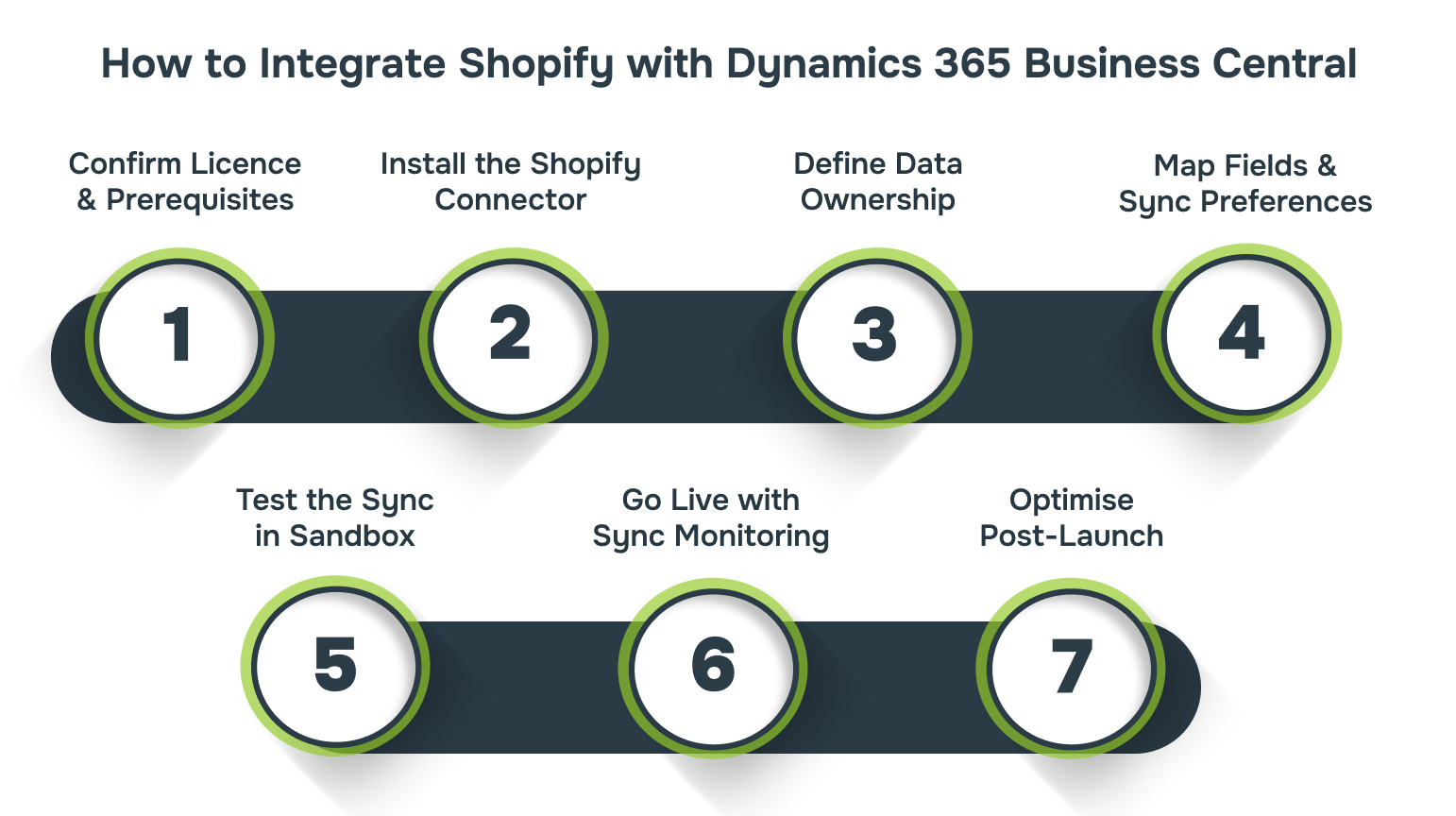
Here’s a strategic, step-by-step guide to setting up the integration the right way:
Step 1: Confirm Licence & Prerequisites
The integration lives or dies on prerequisites. Before you allocate resources or schedule go-lives, make sure:
- You’re using a Business Central licence tier that supports the Shopify connector (typically Essentials or Premium with API access).
- You have access to both the Shopify Admin panel and Business Central admin rights.
- Optional: Set up a sandbox environment (recommended) to avoid impacting live orders or inventory during testing.
Step 2: Install and Connect the Shopify Connector
This is a two-part handshake: one side in Shopify, one in Business Central.
In Business Central:
- Go to “Extension Marketplace” and install the “Shopify Connector” (Microsoft first-party).
- Launch the extension and follow prompts to authenticate with your Shopify store using your Shopify Admin credentials and API key.
In Shopify:
- Approve the connection and allow permission scopes (orders, customers, products, inventory) so the connector can read/write between systems.
Watch for: API rate limits or permission denials, especially if your Shopify store already connects to other tools (like CRMs or fulfilment platforms).
Step 3: Define Data Ownership & Sync Direction
Data ownership determines sync direction, and getting this wrong can cause widespread issues across your entire operation. Decide which system is the source of truth for each data type:
| Data Type | Source System | Notes |
| Products | From Business Central to Shopify | Centralise item creation and variants in ERP |
| Inventory | From Business Central to Shopify | Prevent overselling with ERP-based stock |
| Orders | From Shopify to Business Central | Shopify creates sales orders in BC |
| Customers | From Shopify to Business Central | Enable financial/customer reporting |
You’ll configure each of these during setup, but aligning teams now helps prevent mismatched SKUs or inventory loops later.
Step 4: Map Fields & Sync Preferences
This is where many integrations go wrong. The connector needs to understand how your naming conventions, measurements, and business rules translate between systems. Carefully map:
- SKU codes
- Product variants & descriptions
- Inventory units of measure
- Price lists & currencies
- Customer fields (email, company name, tags)
- Fulfilment methods & shipping options
Choose sync preferences:
- Frequency (real-time, hourly, daily)
- Direction (one-way vs. bi-directional)
- Automation rules (e.g. auto-create new items or hold until approved)
Step 5: Test the Sync in Sandbox or Low-Volume Store
Testing reveals assumption breakdowns before they cost you sales or refunds. Always test with:
- A few sample orders
- Sample products with variants
- Customer creation & updates
- Stock quantity changes
- Order fulfilment and return status
Check:
- Does the stock update correctly in Shopify after a sale?
- Do new customers sync to Business Central with all fields populated?
- Are taxes, currencies, and discounts applied properly?
Step 6: Go Live with Sync Monitoring & Alerts
Once the testing passes, you can:
- Enable the live sync
- Set up error notifications or daily logs
- Assign internal owners for integration health (usually ops + IT)
Schedule regular checks:
- Failed syncs
- Inventory discrepancies
- Order delays or status mismatches
- Duplicate customers or products
Best practice: Utilise Power BI or Business Central reporting to track Shopify-related metrics, such as fulfilment time, refund rates, and sales per channel, directly within your ERP.
Step 7: Optimise Post-Launch
The first 30-60 days reveal your true level of integration. What works on paper often needs micro-adjustments. Monitor performance and gather feedback:
- Are fulfilment delays dropping?
- Is inventory more accurate across channels?
- Are financials cleaner and synced?
Over time, consider:
- Custom workflows for returns or pre-orders
- Advanced multi-store setups
- Integration with third-party analytics, WMS, or CRM tools
This integration becomes a central nervous system connecting front-end sales with back-end operations. Get the foundation right, and you’ll avoid rework, refund spikes, and manual fire drills during peak sales periods.

Also Read: How Custom Software Integration Enhances Business Operations
Now, let’s take a closer look at the critical data elements that keep both systems aligned.
Core Data Sync Points Between Business Central and Shopify
Manual updates between Shopify and Business Central can cause errors, delays, and revenue loss, while automated synchronisation keeps critical data accurate and consistent across systems effortlessly.
The primary data points synced include:
- Product & Item Data: New variants in Business Central are instantly reflected in Shopify, keeping SKUs, names, and descriptions perfectly aligned and eliminating duplicates.
- Inventory & Pricing: Real-time stock and price updates flow from Business Central to Shopify, cutting oversells and stockouts while avoiding costly refunds.
- Customer Information: Customer profiles sync seamlessly from Shopify to Business Central, giving you full visibility on purchase history, credit terms, and marketing segments.
- Order Data: Shopify orders auto-convert to Business Central sales orders; shipment and payment statuses update back to Shopify, reducing errors and improving customer experience.
While these core sync points form the backbone of integration, there are scenarios where the native Shopify connector may not fully meet your business’s needs.
Integration Best Practices for Scalable Retail Operations
Strong integrations rely on security, accuracy, and team alignment. These best practices keep your Shopify and Dynamics 365 systems stable and ready to scale.
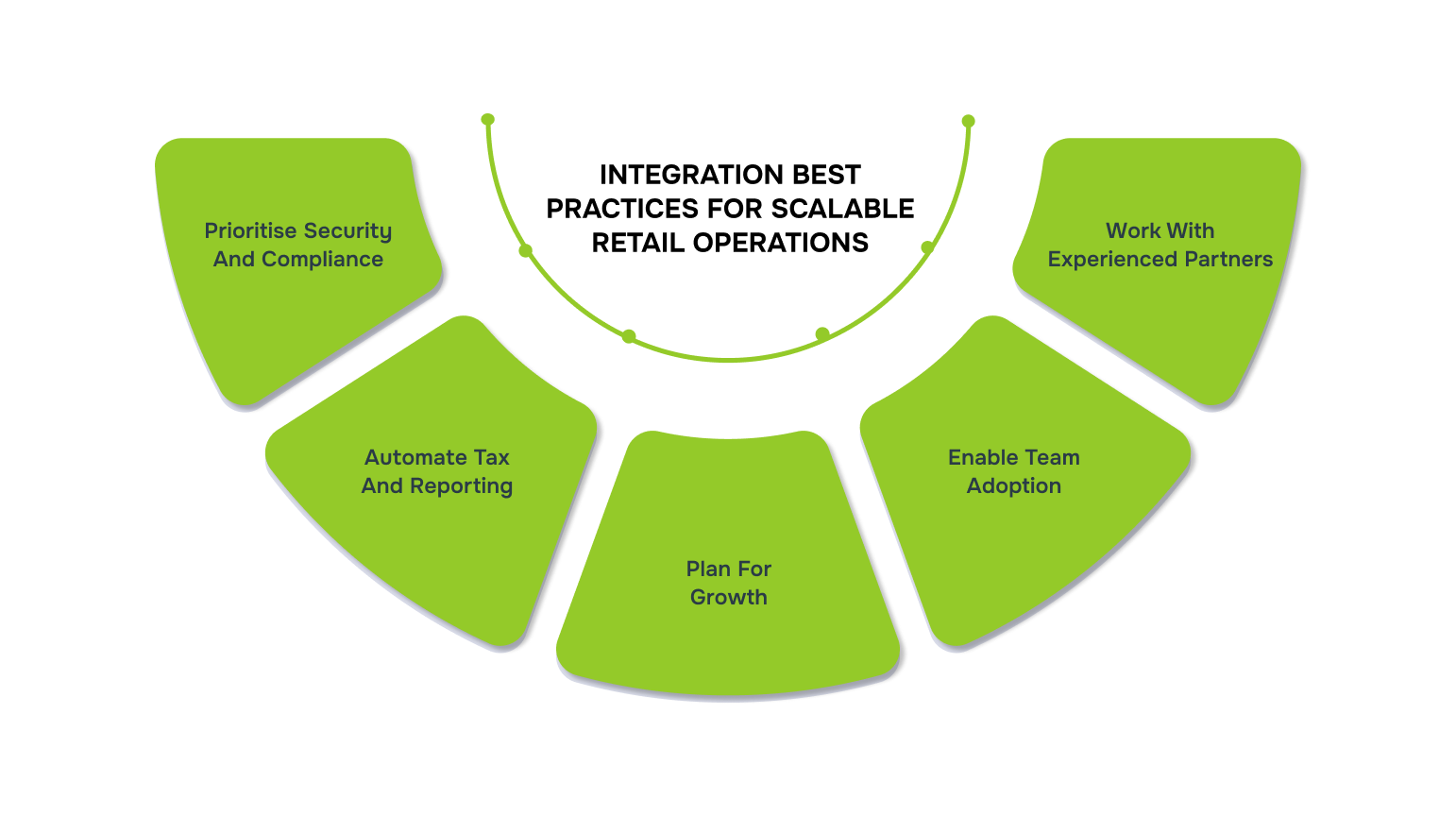
- Prioritise Security and Compliance: Protect customer and financial data with encryption, access controls, and GDPR-aligned processes.
- Automate Tax and Reporting: Use Dynamics 365 automation to cut manual work and maintain accurate records.
- Plan for Growth: Choose solutions that support higher-order volumes, multiple stores, and product expansions.
- Enable Team Adoption: Train staff on connected workflows to reduce errors and improve efficiency.
- Work with Experienced Partners: Collaborate with specialists skilled in both Shopify and Dynamics 365 for long-term reliability.
Also Read: How to Integrate Microsoft Teams with Office 365
While these practices set the foundation, the real impact comes from how they’re applied. That’s where Alberon helps bring it all together.
Streamlining Shopify & Dynamics 365 with Alberon
When standard connectors fall short, you need a solution that matches how your store actually runs. Alberon builds custom integrations that align your Shopify orders, stock, and financial data with Dynamics 365 Business Central, all while keeping your system secure and GDPR-compliant.
Here’s what working with Alberon looks like:
- Map your orders, stock, and pricing so they reflect your actual business operations.
- Handle multiple SKUs, multi-store setups, and complex reporting with ease.
- Monitor your integration post-launch to catch and fix issues early.
- Rely on a UK-based team that ensures GDPR compliance and transparent communication.
With Alberon’s ongoing monitoring and tailored integration support, your Shopify and Dynamics 365 systems stay in sync and ready to scale.
Conclusion
As e-commerce operations grow, so does the complexity behind them. Integrating Shopify with Dynamics 365 Business Central is not just about automation. It is a strategic step to strengthen data accuracy, support changing workflows, and prepare your systems for what comes next.
The built-in connector may be enough for some. But when accuracy and performance matter at scale, it takes more than a basic link. Planning with flexibility in mind becomes essential.
If you are exploring integration paths that keep pace with your business, whether that means managing high-volume SKUs or syncing custom pricing structures, Alberon can help. The team turns that complexity into a clear, reliable system that fits how you work.
Get in touch with Alberon to plan a custom Shopify-Business Central integration that fits your workflows and scales with your business.
FAQs
Q: Do I need a specific licence for Dynamics 365 Business Central to use the Shopify integration?
A: Yes, you need a valid Business Central licence that includes API access. The standard Microsoft connector is only available for certain subscription tiers, so it’s important to check your plan before starting integration work.
Q: Will my historical Shopify order data be imported into Business Central?
A: Not by default. Most integrations focus on syncing live and future data. However, historical order or customer data can be migrated separately if needed, typically via a one-time data import.
Q: How long does a typical Shopify Business Central integration take to complete?
A: Timeframes vary based on complexity, but a standard integration using the native connector might take a few days. Custom integrations, especially those involving multiple stores or unique workflows, can take several weeks, including planning, testing, and deployment.
Q: Will the integration affect my other business systems or workflows?
A: It depends on your setup. If you have other tools connected to Shopify or Business Central (such as CRMs or accounting systems), the integration may require additional mapping or coordination to avoid conflicts or duplicate entries.
Q: Can reporting in Business Central be customised to reflect Shopify-specific data points?
A: Yes. While Business Central provides built-in reporting, many businesses choose to customise reports to reflect Shopify-specific metrics like channel-based sales performance, abandoned cart recovery, or promotional discount usage. This usually requires additional configuration or extension development.
Ready to Improve your Business Productivity
Get a trusted partner to navigate your digital transformation. With Alberon, you can ensure a smooth transition, clear communication, and peace of mind.