
How to Plan and Execute a Successful Microsoft Dynamics 365 Upgrade
Upgrade Microsoft Dynamics 365 smoothly with tips on planning, testing, and monitoring. Minimise downtime and secure your system today.
Want to make your Microsoft 365 work harder for your business?
and we’ll tailor a solution that’s just right for you.
Upgrading your business tools can feel risky, but delaying updates often costs more than it saves. With Microsoft Dynamics 365, staying current helps maintain compliance, supports integrations, and reduces the risk of expensive fixes down the line.
A Dynamics 365 upgrade is more than a technical task. It’s a chance to streamline workflows, safeguard critical data, and ensure your custom features continue to perform as expected.
This article will guide you through how to plan, test, and execute a successful upgrade, so you can minimise downtime and keep your team secure and productive.
Essential Highlights:
- Assess Before Upgrading: Review your current Dynamics 365 setup, dependencies, and integrations to avoid data loss or broken workflows.
- Plan and Test Carefully: Map your version path, create a rollback plan, and run the upgrade in a sandbox before deploying live.
- Validate and Communicate: Confirm that data, automations, and custom workflows function correctly, while keeping your team informed and trained.
- Check Security and Performance: Apply new security patches, review compliance settings, and monitor resource usage after the upgrade.
- Use Expert Support: Partner with Alberon’s UK-based team to guide the upgrade, validate integrations, and maintain system stability post-launch.
Understanding Microsoft Dynamics 365 Upgrades
Microsoft delivers updates for Dynamics 365 on a fixed schedule: major updates twice a year and smaller patches monthly. Some updates introduce new tools and enhance usability, while others enhance the platform’s infrastructure, security, and performance.
These upgrades help your system meet evolving business needs without disrupting daily operations. It’s also important to distinguish upgrades (enhancing your existing environment) from migrations (moving to an entirely new platform), as each requires a different approach.
With these fundamentals in mind, it’s important to carefully assess your environment before proceeding.
Factors to Evaluate Before Upgrading Your System
Before starting a Microsoft Dynamics 365 upgrade, it is essential to have a clear understanding of your current setup and potential risks. Understanding what’s in place helps you avoid surprises and ensures the upgrade goes smoothly.
Here’s what to check first:
- Current environment: Take note of the modules you use, your data size, and how your tools are connected. This gives a baseline for what the upgrade will affect.
- Dependencies: Identify any third-party add-ons or custom code. Knowing these early prevents broken workflows or unsupported features after the upgrade.
- Backup and test environment: Make a secure copy of your data and set up a sandbox. Testing upgrades in a safe space protects your live system.
- Microsoft release plans: Review upcoming updates and service timelines. Aligning your upgrade with Microsoft’s roadmap reduces the risk of conflicts and downtime.

Having laid the groundwork by assessing these key elements, it’s important to now focus on strategies that ensure a seamless upgrade process.
Best Practices for a Smooth Microsoft Dynamics 365 Upgrade
Upgrading Dynamics 365 goes smoothly when you plan for every step. Knowing your version path, testing carefully, and keeping your team informed sets the stage for a successful rollout. Let’s break down the best practices:
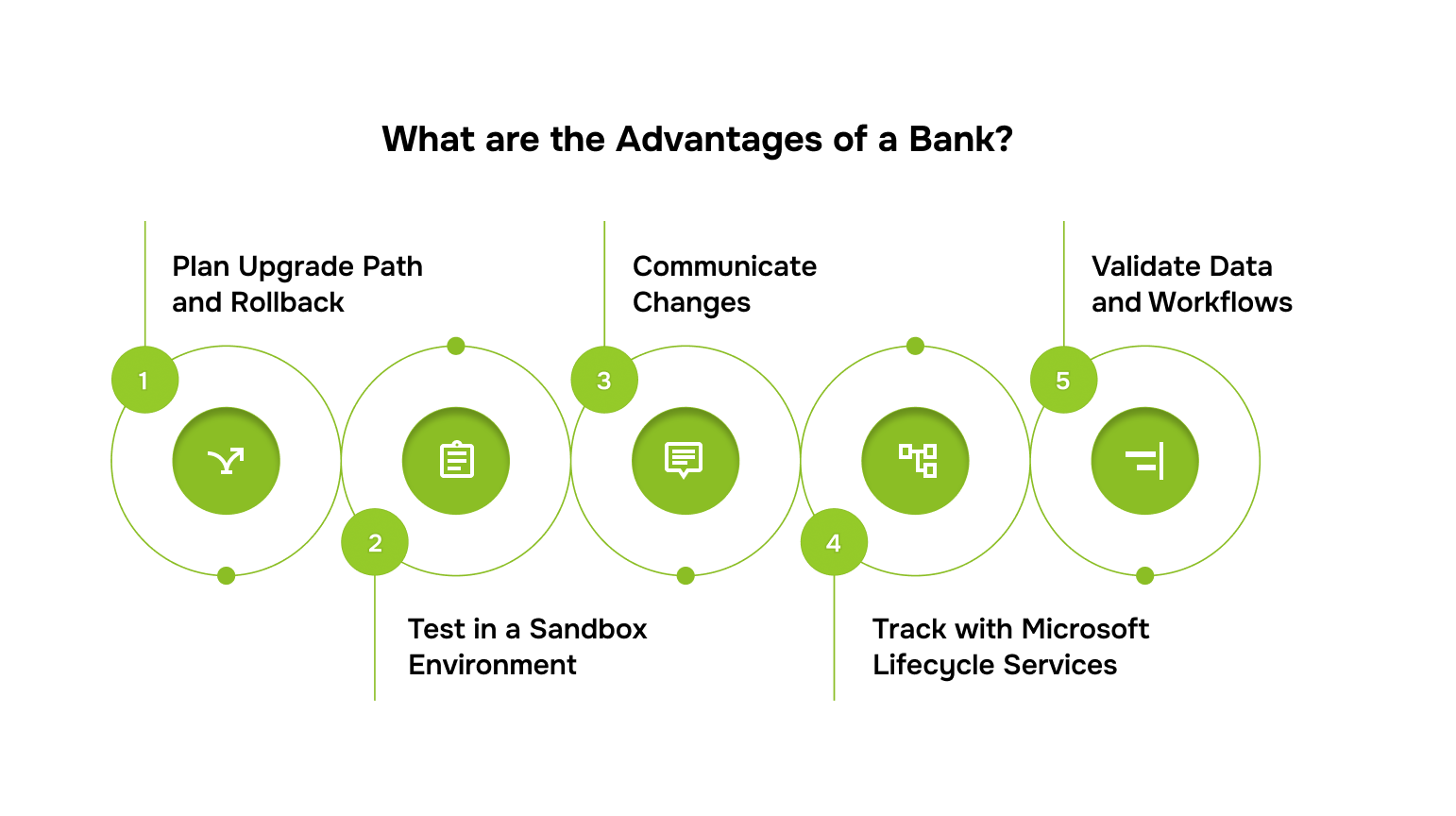
1. Plan Upgrade Path and Rollback
Before making any changes, document which version you are moving from and where you want to go. A rollback plan is your safety net. It’s not expecting failure; it’s ensuring you can restore stability quickly if something goes wrong.
2. Test in a Sandbox Environment
Run the upgrade in a sandbox first. This keeps your live system untouched and gives you space to spot conflicts or errors. Testing early prevents small issues from becoming big disruptions.
3. Communicate Changes with Your Team
Talk to your team before the upgrade happens. Show them interface changes and new features ahead of time. Clear communication helps them adapt faster and reduces friction after the update.
4. Use Microsoft Lifecycle Services to Track Progress
Microsoft Lifecycle Services acts as your control centre during deployment. It monitors status and flags issues early. This way, you can address problems while they are still manageable.
5. Validate Data and Workflows After Upgrade
Once the upgrade is complete, verify that the data has migrated correctly and that the workflows run as expected. Run essential reports and confirm the numbers. A successful upgrade only happens when everything works properly.
With best practices in place, thorough testing is crucial to confirm everything works smoothly. Let’s take a look at the testing and validation checklist.
Testing and Validation Checklist
Testing ensures your Microsoft Dynamics 365 upgrade works before your team relies on it. It shows what’s ready and what needs fixing so your live system stays safe. Here’s a practical checklist to follow:
- Unit Testing: Start by verifying that individual features work independently. A working login screen or a functional search bar confirms the basics before moving on to more complex processes.
- Integration Testing: Check that modules communicate correctly. Data should flow smoothly between sales, inventory, and finance without gaps or errors.
- User Acceptance Testing (UAT): Real people perform real tasks. This exposes issues automated tests miss because humans use systems in unexpected ways.
- Critical Process Focus: Prioritise workflows that affect revenue or customer service. Any failure here must be detected immediately, while minor issues can be addressed later.
- Data Migration Validation: Compare records before and after the upgrade. Totals, relationships, and calculated fields should match. Discovered corrupted data is costly to fix late.
- Automation and Scheduled Tasks: Test reports, emails, and background jobs separately. Ensure everything triggers and completes on schedule.
- Department Sign-Off: Get approvals from team leads before moving to production. Shared accountability ensures everyone is invested and ready for the change.
Once testing confirms stability, focus on handling customisations and third-party integrations to ensure ongoing compatibility.
Handling Customisations and Third-Party Integrations
Custom code often sits outside Microsoft’s upgrade path, which can create hidden issues when the platform changes. It’s essential to review all your customisations and confirm that they still function as intended.
Features that break should be rebuilt using Power Platform tools or extension-based approaches rather than patched old code, since extensions handle future upgrades more smoothly. At the same time, check with ISV vendors to ensure third-party add-ons are compatible with the new version.
With customisations and integrations addressed, it’s equally important to focus on security, compliance, and performance to safeguard your system and optimise its efficiency.
Security, Compliance, and Performance Optimisation
Upgrades do more than add features. They also carry important security fixes and can affect compliance and performance. Checking these areas after an upgrade keeps your system reliable.
Let’s look at the key points:
- Apply Security Patches: Every Dynamics 365 upgrade includes security updates that fix known vulnerabilities. Delaying updates leaves your system exposed to threats.
- Verify Compliance: After the upgrade, confirm that controls and data handling still meet GDPR or industry requirements. New versions can change how data flows or where it’s stored.
- Check Resource Allocation: Monitor processing power, memory use, and response times once the upgrade settles. Adjust infrastructure if queries or tasks start lagging to keep users’ experience seamless.
- Set Up Performance Alerts: Track database load, API response times, and background jobs. Early alerts catch performance issues before users notice disruptions.
With security, compliance, and performance in check, the final piece is having the right expertise to guide the upgrade. That’s where Alberon’s support comes in.
Alberon Support for Your Microsoft Dynamics 365 Upgrade
Even with the best internal planning, a Microsoft Dynamics 365 upgrade can bring unexpected challenges, especially when it comes to integrations, automation, and custom features. That’s where Alberon’s Microsoft Dynamics solution comes in.
We provide specialist support that not only ensures a smooth upgrade but also helps you unlock the full potential of your Dynamics 365 environment.
Here’s how Alberon helps make that happen:
- Review your current systems and integrations to ensure that everything continues to work after the upgrade.
- Connect your platforms so data flows efficiently and securely across all tools.
- Automate repetitive tasks to save time and reduce errors.
- Validate workflows and data in a test environment before moving to production.
- Provide documentation and ongoing guidance to enable your team to adopt new features with confidence.
This approach keeps the upgrade structured, secure, and practical. Your team can stay productive, and the systems support your day-to-day work without interruptions.
Post-Upgrade Steps and Monitoring
How you handle things after the upgrade decides whether it truly succeeds. Paying attention to user feedback, system checks, and documentation keeps your platform reliable and your team confident. To ensure everything runs as expected, follow these steps:
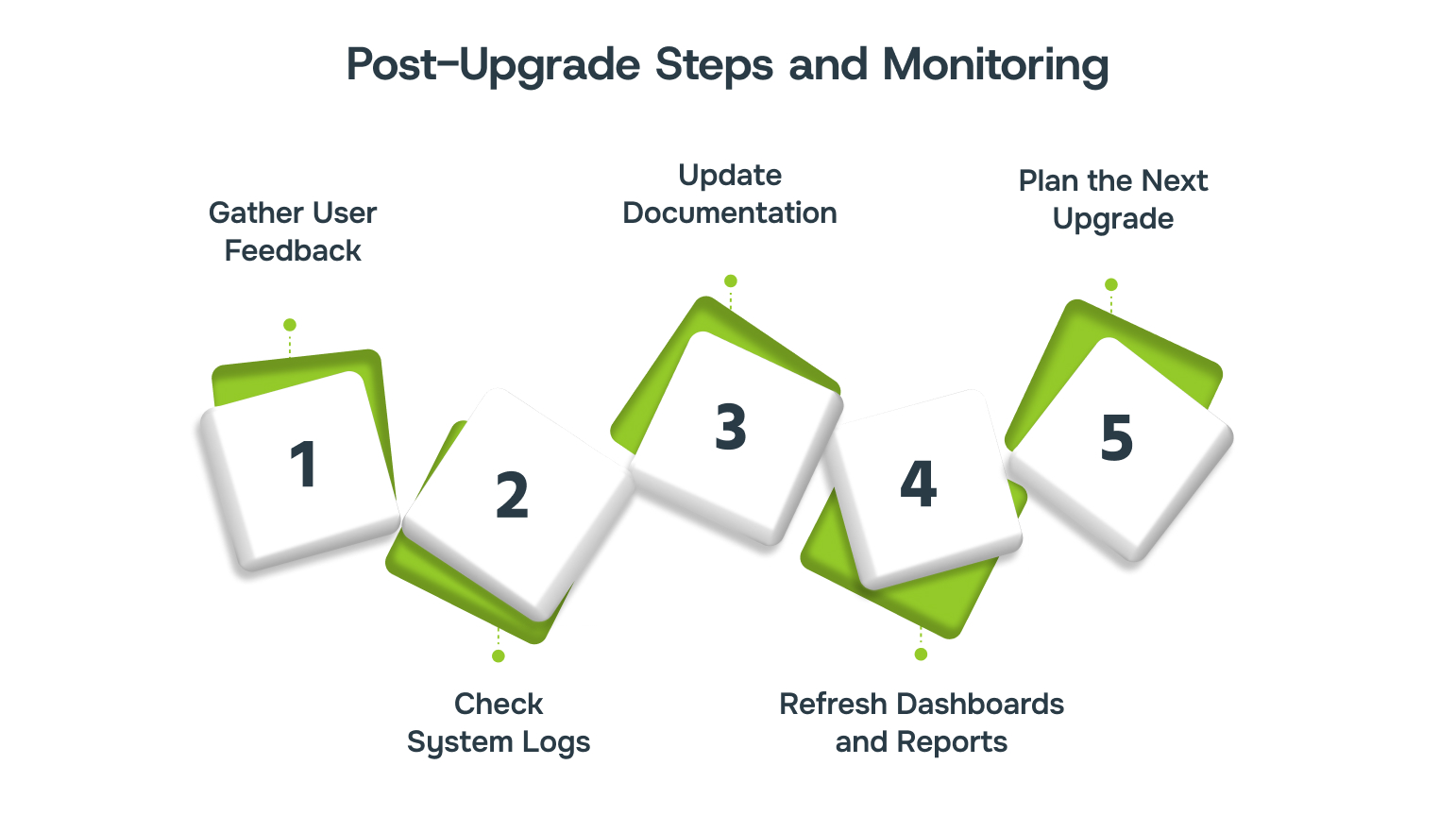
1. Gather User Feedback
Ask your team for input right away. They notice small workflow changes or glitches that testing missed. Acting quickly builds trust and prevents frustration.
2. Check System Logs
Review logs closely for the first couple of weeks. Repeated warnings or error patterns reveal deeper issues. Early detection stops small problems from growing.
3. Update Documentation
Revise training guides, process manuals, and help resources to match the upgraded system. Outdated instructions can confuse users and slow productivity.
4. Refresh Dashboards and Reports
Ensure that all dashboards and reports pulling system data work correctly. Upgrades can change queries or data structures, so make sure tools function from day one.
5. Plan the Next Upgrade
Schedule the following update window proactively. Smaller, regular upgrades are easier to manage than large version jumps. Staying ahead avoids surprises.
Following these steps keeps your system stable, your team confident, and ensures the benefits of your upgrade last.
Conclusion
Upgrades are more than just new features. They’re about keeping your system clear, predictable, and ready for what comes next.
Proper planning and structured testing give your team confidence and reduce surprises. Post-upgrade monitoring helps you spot issues early and ensures your workflows stay smooth as your business evolves.
Bringing this clarity to life can be complex. Alberon’s UK-based team guides you through the upgrade process, ensuring the system is secure, easy to manage, and prepared for future updates.
Schedule a free call with Alberon to get expert support for a smooth Dynamics 365 upgrade.
FAQs
Q: How does the upgrade process differ between cloud-based and on-premise Dynamics 365?
A: The upgrade process varies significantly based on your deployment type. For cloud-based Dynamics 365, Microsoft manages most of the upgrade process, including scheduling and infrastructure updates. In contrast, on-premise deployments require your team to handle the entire upgrade process, including infrastructure updates, testing, and deployment.
Q: What are the typical costs associated with a Dynamics 365 upgrade?
A: The cost of upgrading to Dynamics 365 can vary widely depending on factors such as the number of users, level of customisation, and whether you’re migrating from an older version like Dynamics AX.
Q: What is the “One Version” service update model in Dynamics 365?
A: Microsoft’s “One Version” approach ensures that all customers are on the same version of Dynamics 365, simplifying support and maintenance. This model means that updates are rolled out uniformly, and customers are encouraged to stay current with the latest version to benefit from new features and security improvements.
Q: How can I determine if my customisations and third-party solutions are compatible with the new Dynamics 365 version?
A: Before upgrading, it’s crucial to assess the compatibility of your customisations and third-party solutions. Microsoft provides tools and resources to help identify potential issues. Additionally, reviewing the release notes and consulting with your ISV vendors can provide insights into compatibility and necessary adjustments.
Ready to Improve your Business Productivity
Get a trusted partner to navigate your digital transformation. With Alberon, you can ensure a smooth transition, clear communication, and peace of mind.